Using Sloppy
Manage apps, change settings, and check jobs and logs from the dashboard.
Find your way around
Open Sloppy from Chrome’s Extensions menu or your pinned toolbar icon. The dashboard brings together your apps, their settings, and the local companion’s status. Complete the setup guide before developing local apps.
- Apps: open and control your active app collection.
- Catalog: browse the app descriptions and installation options supplied by the configured catalog.
- Archive: find apps you have put aside.
- Develop apps: reopen the local setup instructions. If the companion is offline, this button reads Set up companion.
- Settings, Logs, and Jobs: configure the workspace, investigate errors, and inspect scheduled work.
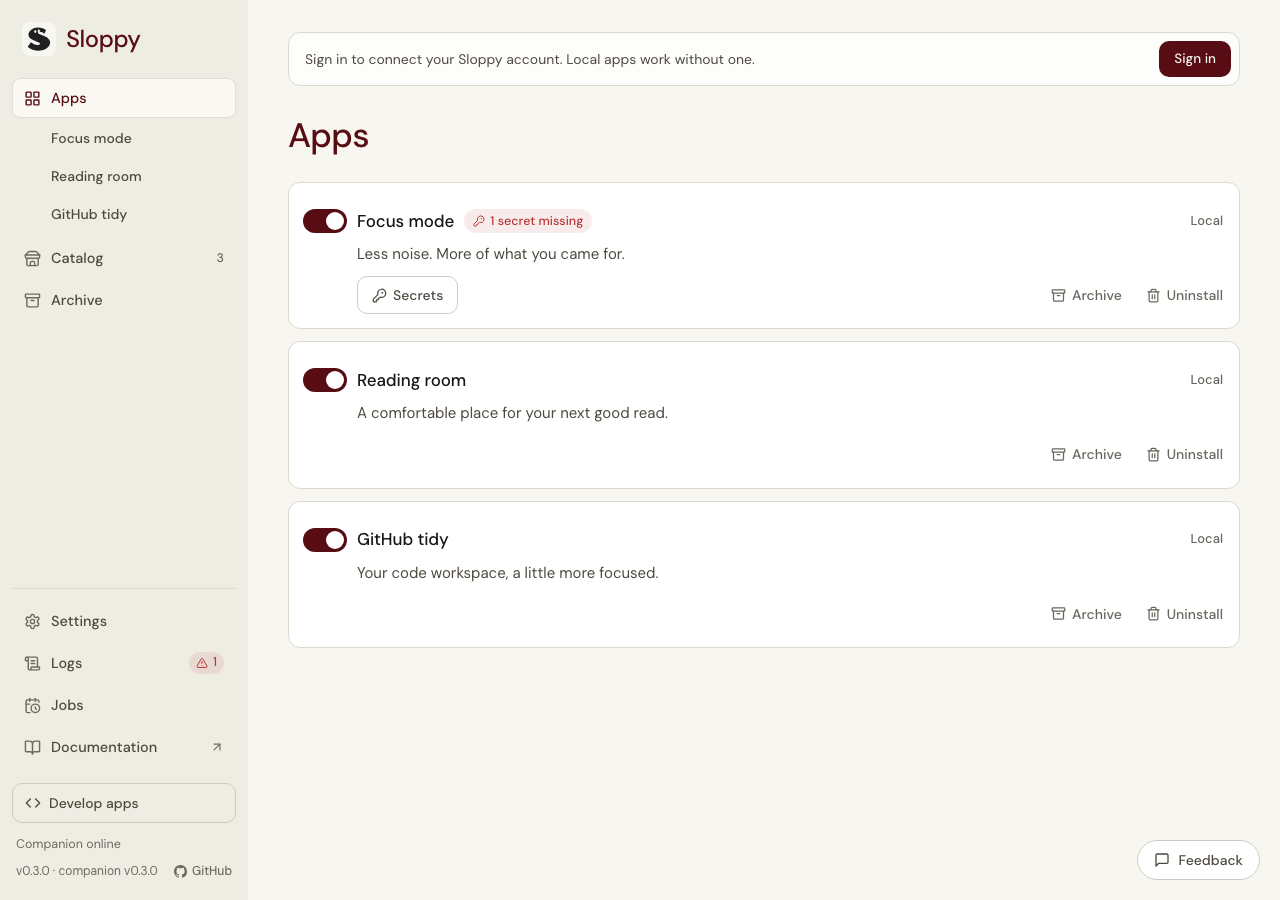
Manage apps
- Choose Apps in the sidebar.
- Select an app’s name to open its page. App-specific settings and any preview appear there.
- Use the app’s switch to enable or disable it. Disabled apps stay in your list.
- Visit a website matched by the app. Reload your own test tab after changing a userscript or disabling it so you are checking a fresh page.
Disabling an app prevents its registered userscripts from running on future page loads. It does not necessarily undo changes already made to an open page. App-specific settings can have their own behavior; follow the instructions on that app’s page.
A Local label means the app lives in your local workspace. A Catalog label means it came from the catalog. Modified means a catalog app has local edits, and an update badge means the catalog advertises a newer version. Review and back up local changes before replacing or updating an app.
CheckTest an app both enabled and disabled on its matching website. Confirm the intended change and check that the rest of the page still works.
Explore the catalog
Open Catalog, then choose an app to read its description and see any example media. The action reflects the current state: Install, Open app, Update, or Replace may be shown. Some apps require the local companion; others depend on account and backend configuration.
Read the confirmation carefully when replacing an existing app. A locally edited version may differ from the catalog version. The dashboard can offer Edit locally for a cloud-sourced app when the companion is online; it copies the source into the local workspace when the configured catalog supports that operation.
If the catalog is empty or installation fails, check the displayed error and your companion connection. Local catalog installation needs an explicitly configured catalog source; cloud installation needs a working account backend. This deployment does not make every catalog installation path available. You can still build an app directly in your local workspace.
Archive or uninstall
Archive disables an app and moves it out of the active Apps list. To bring it back, open Archive and choose Unarchive. Restored apps remain disabled until you deliberately turn them on again.
Uninstall is different. For a local app, the confirmation warns that it deletes the app’s folder and saved secrets. Back up source you want to keep before confirming. For a cloud app, it removes the app from the account, subject to the connected backend being available.
Jobs
The Jobs page shows work declared or queued by apps. You can run, cancel, and review jobs here, but you can’t create a new schedule from this page.
- Open Scheduled to inspect recurring jobs and pending one-time runs.
- Read the app, job, schedule, and destination before choosing Run now. A run can perform the real action implemented by the app, including contacting a service.
- Use Cancel on a pending one-time run when you no longer want that task to execute. This does not undo work that already ran.
- Open History and expand a run to inspect its result and captured output. Use Refresh to fetch current information.
Local jobs need the companion and an awake computer. Cloud job interfaces exist in the code, but a hosted job service is not provided by this deployment. Check where a job will run rather than assuming it continues while your computer is off.
An empty list can be normal: the app may not declare any jobs. If you see “Jobs are unavailable”, check the companion connection instead of scheduling the job again.
Logs
Logs opens with the error filter selected when there are errors, and shows all levels otherwise. Start there after a failure, then broaden the view if you need more context.
- Choose Error, Warn, Info, or All to set the level filter.
- Filter by extension or apps. With the app source selected, narrow the list to one app when available.
- Use the search field to match message text, source names, or stack text.
- Expand an entry that has additional details. Reproduce the failed action in a test tab and use Refresh to inspect the latest result.
“No logs match these filters” doesn’t mean there are no logs. Clear the search and broaden the filters first. Clean logs also do not prove an app works; check the actual website behavior.
Logs can contain private page content or service responses. Remove secrets and personal information before sharing an excerpt. For command-line checks, see app troubleshooting.
Settings and connection
The sidebar reports two related channels: the browser connector links Chrome to the companion, while the companion itself serves your local apps. When their states differ, you may see both indicators. Check the specific offline channel rather than assuming a website sign-in will reconnect it.
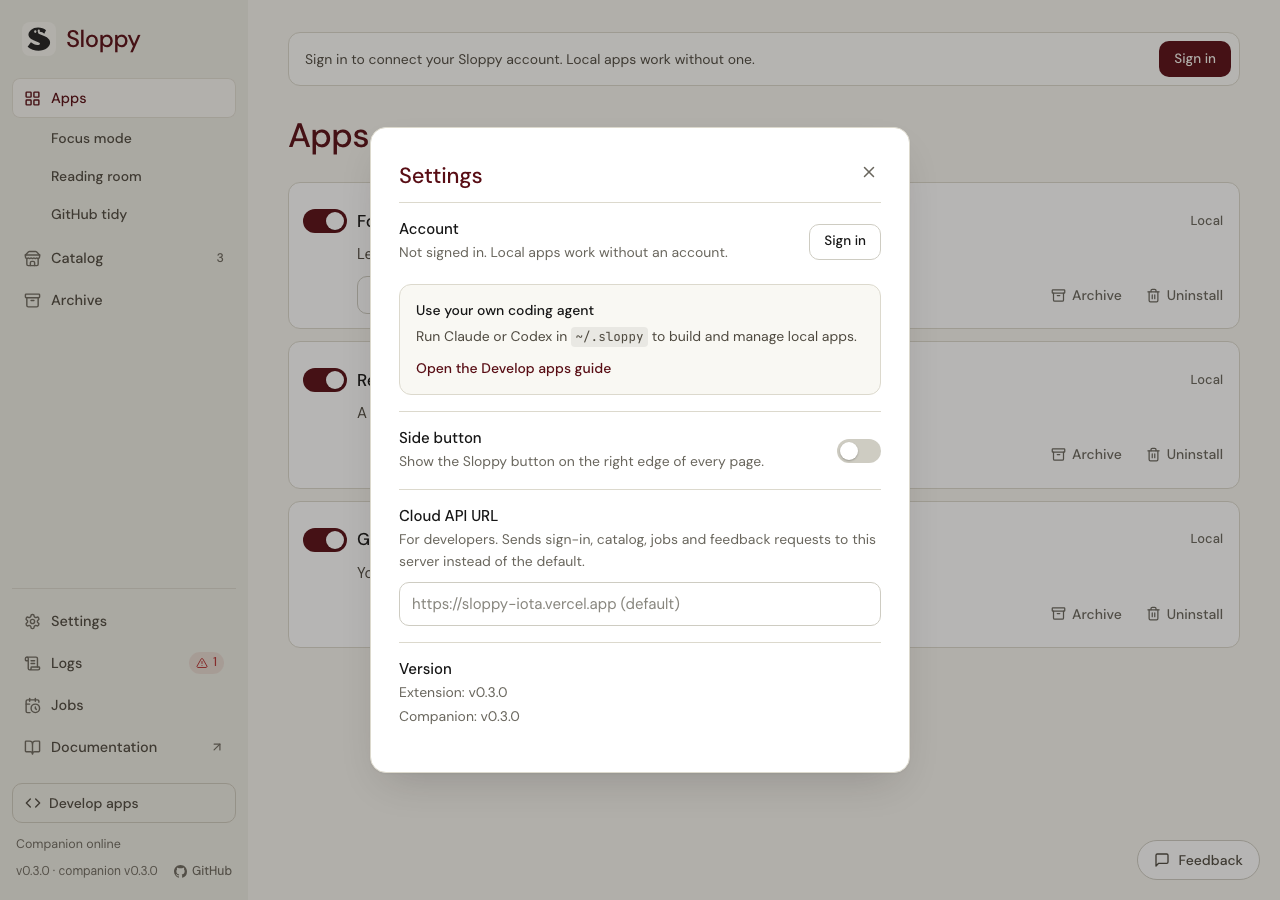
- Account: shows whether you’re signed in. Choose Sign in to connect your Sloppy account; local apps don’t need one.
- Open the Develop apps guide: shows how to use your own coding agent in
~/.sloppy. - Side button: controls the Sloppy button at the edge of supported web pages.
- Development builds only: Enable side panel and Disable companion appear when you build the extension from source. They aren’t in the downloaded extension.
- Cloud API URL: an advanced gateway override. Leave it empty for the default deployment. Changing it redirects cloud-bound requests; do not enter an endpoint you do not trust.
- Version: shows the extension and companion versions. An update action appears only when a compatible companion update is available from a configured release source.
- Connected accounts: when available, lists third-party connections by app. Disconnect only a connection you intend that app to stop using.
For the current private-source developer build, follow the manual update instructions rather than assuming an automatic update feed is configured.
App secrets
Apps that declare server-side keys can show a Secrets action or a missing-secrets indicator. Open it from that specific app, read each key’s label, and supply only the credentials that app needs.
- Confirm the local companion is connected.
- Enter the required value and choose Save. Check for a saved status or an error before closing the dialog.
- Use the reveal control only when you need to inspect a value, and keep it hidden when sharing your screen.
- Use the key’s clear control to remove a saved value. Removing a required key can cause subsequent app requests to fail.
The companion stores these server-side values locally and makes them available to app server functions. An app can use a key in requests to an external provider; local storage is not a guarantee that an app never transmits it. Review trusted code and use limited credentials where possible.
Never paste private keys into a userscript, a website comment field, a screenshot, or a public issue. Read permissions and secret handling for the boundary between app UI and server code.