Find a fix
Start with the smallest check. Keep your apps and settings intact.
Extension loading
- Extract the download first. Select the directory with
manifest.jsonwhen using Load unpacked. - Keep the extension folder in its original location. Moving or deleting it breaks the unpacked installation.
- Use an up-to-date Google Chrome. Check the extension’s Errors panel and record the exact error, if present.
- If you use a managed work or school browser, your administrator may restrict developer extensions or user scripts. Follow your organization’s policy.
If the dashboard opens but changes never appear on websites, check Details → Allow User Scripts and the extension’s site access. Reload your own test page after changing permissions.
Companion connection
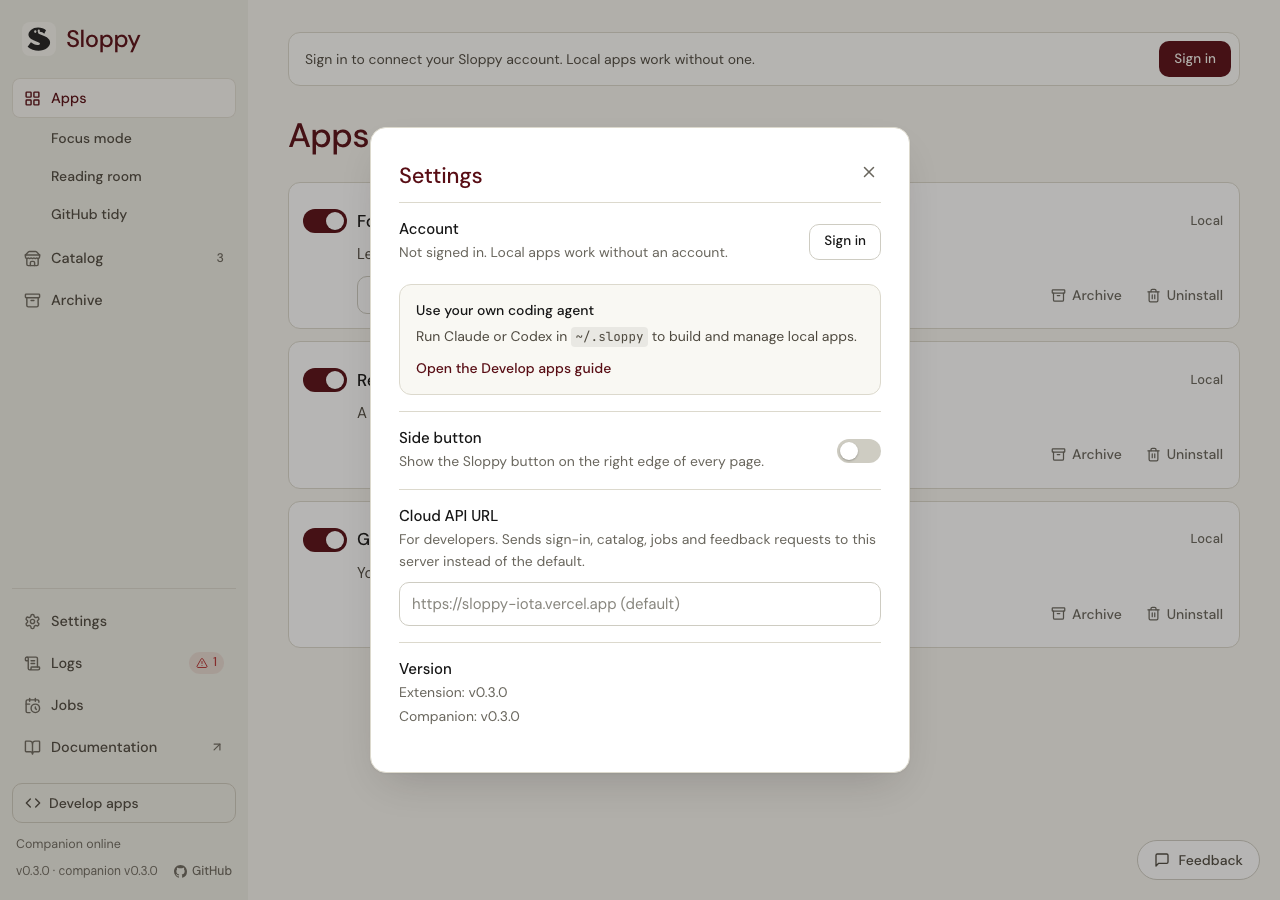
- Keep Chrome open with Sloppy enabled. If your build shows the development-only Disable companion switch in Settings, make sure it is off.
- After installing or updating the companion, quit and reopen Chrome fully.
- Open a fresh terminal and run the checks below.
- If the CLI exists but the connection still fails, rerun the installer from your trusted repository checkout and restart Chrome. Use the update instructions.
command -v sloppy
sloppy browser tabs
cat ~/.sloppy/state/daemon.json
tail -n 60 ~/.sloppy/state/daemon.log
The companion normally prefers port 3223 but can choose another free port. Read its current state instead of assuming the port. A missing state file may mean the companion has not started yet.
For a separately published extension ID, the native messaging allowlist must match that extension. The installer supports SLOPPY_EXTENSION_IDS; set it consistently for installation and runtime. Most users of the provided developer build do not need to change it.
App not working
- Confirm
apps/<id>/manifest.jsonexists and itsidmatches the folder name. - Check that all files named in the manifest exist, the app is enabled, and it is not archived or marked
visibility: "hidden". - Check that the page URL matches the userscript’s
matchespatterns. - After editing a userscript, open the matching website in a fresh tab or reload your own test tab. The companion does not reload existing tabs.
- If your custom settings page does not appear, verify that
ui/App.tsxexists, mounts into#root, and bundles without an error. - A “Could not resolve” build error usually points to an undeclared dependency. Add it to that app’s
package.jsonand install its dependencies.
cd ~/.sloppy
bun run --bun tsc --noEmit
sloppy browser logs --level error -n 50
For an RPC error, verify that sloppy.rpc('name', ...) has a matching default export in server/name.ts. Read the companion log for the actual failure; never fix missing secrets by putting them into browser code.
Repository access
The Sloppy repository is currently private. Confirm that you are signed in to GitHub with an account that has collaborator access and that your normal Git authentication is configured. The public website and the extension do not grant repository access.
If access is missing, contact the person who invited you to Sloppy. Repeating the clone command or changing the repository URL will not grant access.
Account and cloud
Website sign-in is available, but hosted AI and cloud connectors aren’t included, and signing in doesn’t turn them on. If the extension says sign-in is unavailable, your local apps still work. The local companion workflow uses your own coding agent account and works independently of website sign-in.
The site does not sell a paid plan or include model credits. Do not enter provider secrets into a website form or assume an account enables a paid model service.
Collect useful details
When asking for help, include your operating system, Chrome version, extension version from its Details page, the exact failed step, and a short sanitized error excerpt. Describe what you expected and what actually happened.
Share the smallest reproducible app or the relevant manifest when possible. Remove access tokens, API keys, personal page content, private URLs, and connected account information from logs or screenshots first.
Use the contact section or your existing project contact. If you are a repository collaborator, include the relevant source revision.